WhatsApp Web Security Alert in Pakistan: Risks and Safety Tips
Pakistan's National CERT has warned about targeted malware and phishing through WhatsApp Web, Desktop, and email. Learn the risks and how to protect your computer.
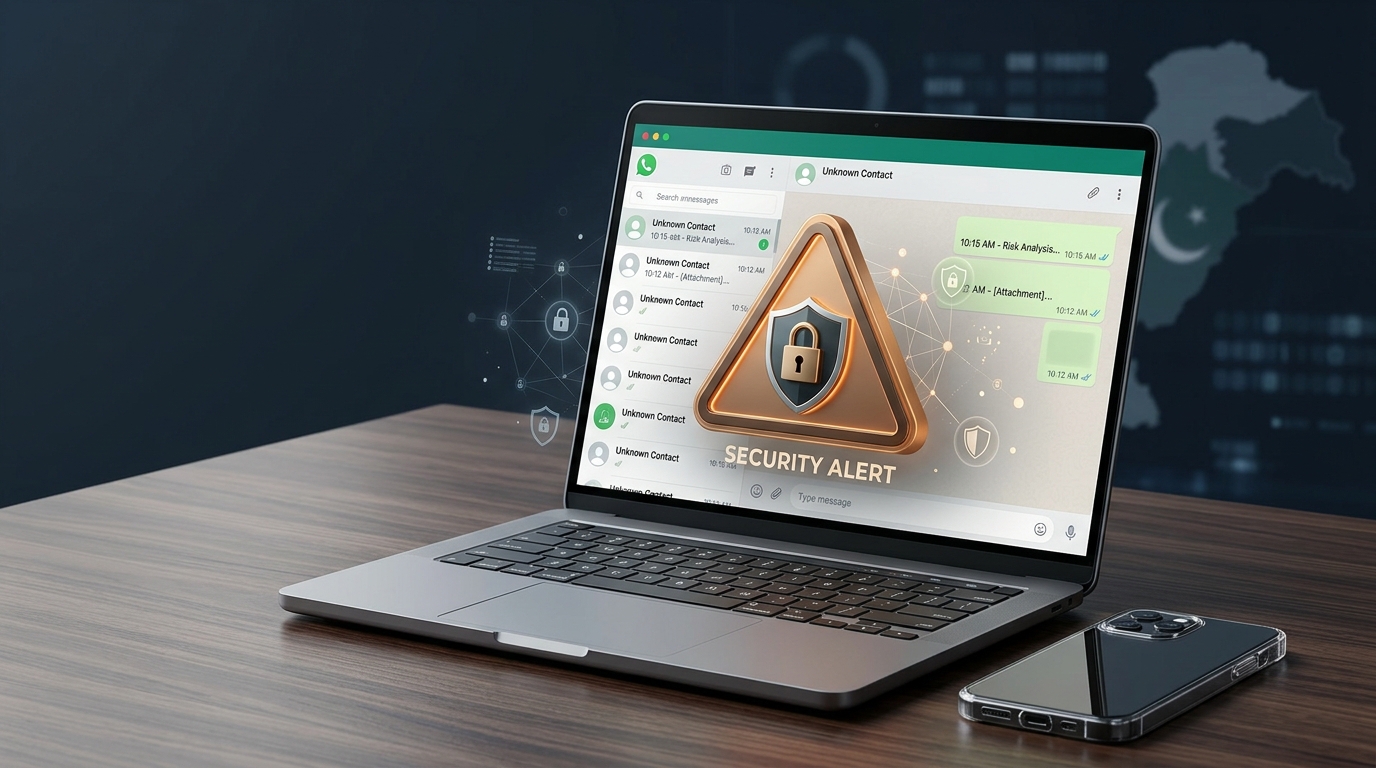
WhatsApp Web and desktop messaging apps make it convenient to communicate from a computer. People use them to exchange documents, coordinate work, and stay in touch with family and colleagues. However, a message or attachment that looks familiar is not automatically safe.
On October 26, 2026, news coverage in Pakistan reported a high-level cybersecurity warning concerning targeted malware and phishing through WhatsApp Web, WhatsApp Desktop, and email on Windows systems. Pakistan’s National Cyber Emergency Response Team (National CERT) lists an advisory on this threat.
This guide explains what the warning means, what ordinary users should look out for, and how to reduce the risk of account or computer compromise.
What Is the WhatsApp Web Security Warning?
The reported advisory describes attacks in which malicious files or deceptive messages may be presented as legitimate documents or communications from trusted people and organizations.
The concern is that a recipient could be tricked into opening a harmful file, running malicious content, or following instructions that expose their account or computer. Depending on the attack and the victim’s system, the consequences may include stolen credentials, unauthorized access, or exposure of sensitive information.
The warning specifically highlights Windows systems and people handling confidential or official information.
Important: This is not the same as a nationwide ban on WhatsApp. The reported guidance is particularly restrictive for officials and people handling sensitive information who may be instructed to avoid WhatsApp Web and Desktop on Windows systems. Follow any applicable workplace or government security policy.
How Can a Messaging-Based Attack Work?
Cybercriminals often rely on deception rather than a complicated technical trick that users can easily recognize.
A typical attack may involve several stages:
- Impersonation: An attacker pretends to be a colleague, official, business, or another trusted contact.
- A convincing message: The message claims that an invoice, notice, report, application, or other document needs urgent attention.
- A malicious file or link: The recipient is encouraged to open an attachment, download a file, visit a website, or run a program.
- A compromised device or account: If the action exploits a vulnerability or the recipient executes malicious content, the attacker may gain access or steal information.
This is a general explanation of common attack methods, not a claim that every message or attachment is malicious. The exact technique varies by campaign.
Why Familiar Contacts Are Not Always Safe
A message from a saved contact may feel trustworthy, but attackers can impersonate people, compromise accounts, or take advantage of an existing conversation.
Be cautious when a message:
- Arrives unexpectedly with an attachment.
- Uses urgent language to pressure you into acting immediately.
- Requests a password, one-time password (OTP), or verification code.
- Tells you to disable antivirus or other security protections.
- Asks you to install software or run a command you do not understand.
- Contains a link whose address does not match the organization it claims to represent.
If a colleague sends an unusual request, verify it through a separate communication channel, such as a phone call to a number you already trust.
How to Protect WhatsApp Web and Your Windows Computer
1. Do Not Open Unexpected Attachments
Avoid opening unexpected files, especially executable files, archives, scripts, or documents that ask you to enable unusual features or run additional content.
If an attachment claims to be an official notice or urgent business document, confirm its legitimacy with the sender before opening it.
File names and familiar logos can be copied. They are not proof that a file is safe.
2. Check WhatsApp Linked Devices
Review the devices connected to your WhatsApp account.
On your phone, open WhatsApp and find Linked Devices in the app menu or settings. The exact location can vary by platform and version.
If you see a device or session you do not recognize, log it out. If you suspect that someone has accessed your account, secure your phone and account and review other relevant security settings.
3. Enable Two-Step Verification
WhatsApp’s two-step verification adds a PIN requirement to certain account-registration situations. Enable it in the account settings and protect the associated email address if one is configured for recovery.
Never share your verification code or two-step verification PIN with another person. A message claiming to be from support does not make a request for your code legitimate.
4. Keep Windows and Applications Updated
Install security updates for Windows, your browser, WhatsApp, and other applications from their official update mechanisms.
Updates can fix known vulnerabilities. They cannot guarantee protection from every attack, but running unsupported or outdated software can increase risk.
5. Use Security Software
Keep Microsoft Defender or another reputable security product enabled and updated. Do not install unfamiliar security tools suggested through unexpected messages.
If your organization manages your computer, follow its approved security controls rather than changing settings independently.
6. Use Approved Channels for Sensitive Information
If you handle government, employer, customer, or other confidential information, follow your organization’s rules for messaging and document transfer.
A personal messaging account may not be an approved channel for sensitive records. If your organization has instructed staff not to use WhatsApp Web or Desktop on particular Windows systems, follow that instruction.
7. Back Up Important Files
Keep backups of important documents and make sure you know how to restore them. A separate backup that is not continuously connected to the computer can provide additional protection against some forms of malware and accidental deletion.
Learn more about safer passwords, phishing, privacy, and backups in our guide to online safety and cybersecurity basics.
What Should You Do If You Suspect an Attack?
If you opened a suspicious file or believe your computer has been compromised, avoid continuing to use it for sensitive work.
- Disconnect the affected computer from the internet and other networks if compromise is suspected, particularly if you are following an incident-response advisory.
- Do not reopen the suspicious file or attempt to investigate it by running it again.
- From a separate, trusted device, secure important accounts if credentials may have been exposed. Change affected passwords and revoke suspicious sessions.
- Contact your organization’s IT or security team if the device contains work, customer, government, or other sensitive data.
- Preserve relevant messages and details for investigation, following your organization’s instructions.
- Use trusted security support to assess and clean or rebuild the affected system.
If the device belongs to your employer or contains sensitive information, do not independently erase evidence or reinstall the operating system before contacting the responsible security team.
Is WhatsApp Web Safe to Use?
WhatsApp Web is a legitimate messaging service, but no online service or device is completely risk-free. The security of a session also depends on the computer, browser, account, software updates, and how users handle messages and files.
For everyday users, sensible precautions include keeping software updated, avoiding suspicious attachments, checking linked devices, and enabling account protections.
For people handling confidential information, general advice may not be enough. They should follow the specific restrictions and procedures issued by their organization or the relevant cybersecurity authority.
Frequently Asked Questions
Has Pakistan banned WhatsApp Web?
The reported alert is not a general nationwide ban. It highlights targeted threats and recommends stronger precautions, including avoiding WhatsApp Web and Desktop on Windows systems for officials and people handling sensitive information where the advisory applies.
Can opening a WhatsApp message hack my computer?
Receiving or viewing an ordinary message does not automatically mean a computer has been compromised. Risk depends on the content, software, vulnerabilities, and what actions take place. Unexpected files, links, and requests to run software deserve particular caution.
What if a friend sends me a suspicious document?
Do not open it immediately. Contact the person through a separate trusted channel and ask whether they intentionally sent it. Their account may have been compromised, or someone may be impersonating them.
How do I check whether someone is using my WhatsApp account?
Review WhatsApp’s Linked Devices section and log out any session you do not recognize. Protect your verification codes and enable two-step verification. If you suspect a broader compromise, secure your account from a trusted device.
Should I stop using WhatsApp Web completely?
Follow the guidance that applies to your situation. If you handle sensitive information and your organization or a relevant authority instructs you to stop using WhatsApp Web or Desktop on a Windows system, comply. Other users should apply strong security practices and remain alert to updated official guidance.
Final Thoughts
The key lesson from Pakistan’s reported WhatsApp Web security warning is simple: do not assume that a familiar contact, official-looking document, or ordinary messaging workflow is automatically safe.
Keep your computer and applications updated, verify unexpected files, protect account verification codes, and review linked devices. If you handle sensitive information, follow the applicable security advisory and your organization’s approved communication rules.
Cybersecurity is most effective when these habits become routine rather than something you consider only after an incident.