Essential Computer Skills Everyone Should Know
Learn essential computer skills for everyday life, including file management, web browsing, email, documents, online research, troubleshooting, backups, and digital security.
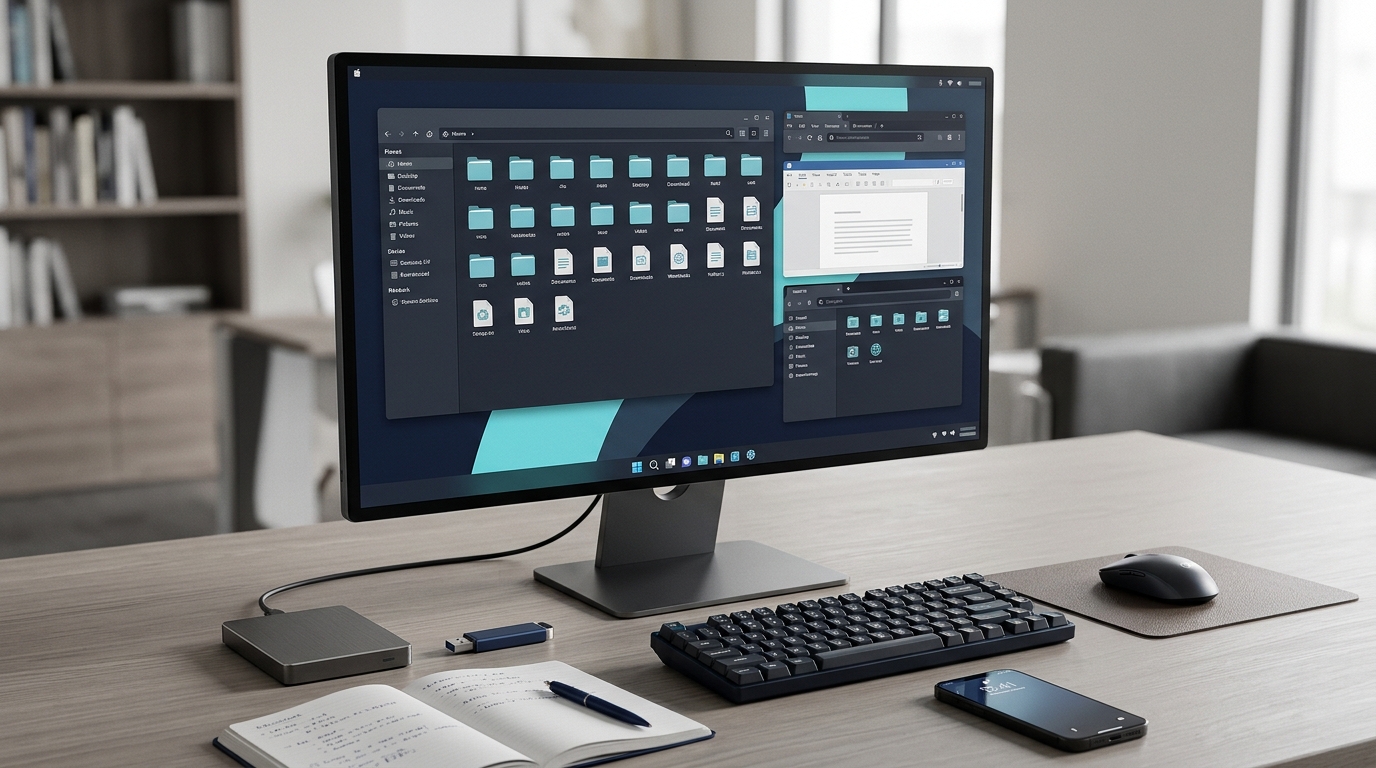
Computers are part of everyday life. We use them to study, work, communicate, manage documents, apply for jobs, and access online services. You do not need to be a programmer or technical expert to use a computer confidently, but learning a few essential skills can save time and help you avoid common problems.
This guide covers practical computer skills that beginners can build gradually. Whether you are a student, job seeker, office worker, or someone learning technology for personal use, these fundamentals provide a useful starting point.
1. Understand the Basics of Your Computer
Start by learning how your computer’s main parts and operating system work.
You should know how to:
- Turn your computer on and shut it down properly.
- Sign in, lock your screen, and switch between applications.
- Use the keyboard, mouse, touchpad, and common keyboard shortcuts.
- Find system settings such as display, sound, network, and storage.
- Check basic information about your operating system and device.
- Connect to a trusted Wi-Fi network and recognize when you are offline.
Become familiar with your operating system’s interface. On Windows, learn to use File Explorer and Settings. On Linux, explore the file manager, system settings, and application launcher. On macOS, become comfortable with Finder and System Settings.
The goal is not to memorize every feature. It is to know where to find the tools you need.
2. Manage Files and Folders
File management is one of the most useful computer skills. A well-organized computer makes it easier to find documents, submit assignments, and keep important records.
Practice these tasks:
- Create folders for different subjects, projects, or activities.
- Give files clear, descriptive names.
- Copy, move, rename, and delete files.
- Understand the difference between a file and a folder.
- Find files using search and sort them by name, date, or type.
- Recognize common file extensions such as
.pdf,.docx,.jpg, and.xlsx. - Check where downloaded files are saved.
For example, you could organize your work like this:
Documents/Study/Assignments/Documents/Job Applications/Documents/Personal Records/
Avoid storing every file in one folder or using confusing names such as final2-new-final.docx. A consistent naming system makes future searches much easier.
Also learn how the Recycle Bin or Trash works. Deleting a file may not immediately remove it permanently, but you should never rely on recovery being possible.
3. Browse the Internet Effectively
A web browser allows you to access websites, online learning platforms, government services, and many workplace tools.
Important browsing skills include:
- Open and manage tabs.
- Use bookmarks for useful websites.
- Recognize the address bar and enter website addresses correctly.
- Download files from trustworthy sources.
- Understand browser history and private browsing.
- Identify suspicious pop-ups and misleading download buttons.
- Keep your browser updated.
Learn to distinguish a website’s address from a search query. If you search for a service, inspect the result’s domain before opening it, particularly when entering personal or financial information.
A padlock or HTTPS connection indicates that the connection is encrypted; it does not prove that a website is legitimate or trustworthy.
For safer everyday browsing, see our guide to online safety and cybersecurity basics.
4. Search for Information Online
Finding reliable information is more valuable than simply knowing how to use a search engine.
Improve your searches by:
- Using specific keywords instead of long, vague questions.
- Putting an exact phrase in quotation marks when appropriate.
- Adding a relevant year, location, or product model to narrow results.
- Comparing information from more than one credible source.
- Checking publication dates for information that changes frequently.
- Looking for original documentation when researching software or technical problems.
For example, instead of searching for computer problem, try Windows 11 laptop cannot connect to Wi-Fi.
Do not automatically trust the first result. Sponsored results, outdated pages, and inaccurate information can appear in search results. Consider the source, supporting evidence, and date before relying on a claim.
5. Use Email Professionally
Email is widely used for education, job applications, account registration, and workplace communication.
Learn how to:
- Write a clear subject line.
- Start with an appropriate greeting.
- Keep messages focused and polite.
- Attach the correct files.
- Use CC and BCC appropriately.
- Reply to the relevant message or conversation.
- Recognize suspicious attachments and unexpected links.
- Check spelling and recipients before sending.
A professional email should explain why you are writing and what action, if any, you need from the recipient.
Before sending an attachment, verify that it is the right file and that its contents are suitable for sharing. Never send passwords or sensitive information through ordinary email unless you are following an approved, secure process.
6. Create and Edit Documents
Word-processing tools are useful for assignments, reports, CVs, letters, and other professional documents.
Examples include Microsoft Word, Google Docs, and LibreOffice Writer.
Practice:
- Creating, opening, and saving documents.
- Formatting headings and paragraphs consistently.
- Using lists, tables, and page numbers when appropriate.
- Checking spelling and grammar.
- Inserting images and hyperlinks.
- Exporting documents as PDF.
- Choosing a clear filename and saving to the correct folder.
Use headings instead of making every section title bold manually. Consistent document structure makes longer documents easier to read and can improve accessibility.
When submitting a CV or formal report, follow the recipient’s requested file format. PDF is often useful for preserving layout, but some applications specifically request an editable document.
7. Work with Spreadsheets and Presentations
You do not need advanced office skills to benefit from spreadsheets and presentations.
Spreadsheet basics include:
- Entering information into rows and columns.
- Formatting dates, numbers, and currency correctly.
- Using simple formulas such as
SUMandAVERAGE. - Sorting and filtering lists.
- Creating a basic chart.
- Checking formulas and values before sharing a file.
Tools include Microsoft Excel, Google Sheets, and LibreOffice Calc.
Presentation basics include arranging slides logically, using readable text, and keeping each slide focused on a main point. Avoid filling slides with too much text or using decorative effects that distract from the message.
These skills can help with school assignments, personal budgeting, project tracking, and everyday office tasks.
8. Use Keyboard Shortcuts
Keyboard shortcuts can make routine tasks faster. Start with a few and add more as you become comfortable.
| Shortcut | Common purpose |
|---|---|
Ctrl + C |
Copy |
Ctrl + V |
Paste |
Ctrl + X |
Cut |
Ctrl + Z |
Undo |
Ctrl + S |
Save |
Ctrl + A |
Select all |
Ctrl + F |
Find text |
Alt + Tab |
Switch between open applications |
Ctrl + Shift + T |
Reopen the last closed browser tab in many browsers |
These shortcuts generally apply to Windows and many Linux desktop applications. On macOS, the Command key (⌘) replaces Ctrl for many common application shortcuts, although some shortcuts differ by application.
Learn the shortcuts you use most often instead of trying to memorize a long list at once.
9. Install Software and Keep It Updated
Applications help you perform specific tasks, but downloading them carelessly can expose your computer to unwanted software.
Follow these habits:
- Download applications from official websites or trusted app stores.
- Check system requirements before installing software.
- Read installation prompts rather than accepting every optional offer.
- Avoid cracked applications and unknown executables.
- Install operating-system, browser, and application security updates.
- Remove applications you no longer need when appropriate.
Updates can fix bugs, improve compatibility, and address security vulnerabilities. Restart your computer when an update requires it, and avoid repeatedly postponing important security updates.
On work or school devices, follow the organization’s software installation and update policies.
10. Protect Your Accounts and Personal Information
Basic digital security is an essential computer skill, not an optional extra.
Use a different, strong password for each important account. A reputable password manager can help you create and store unique passwords. Enable multifactor authentication wherever possible, especially for email, financial accounts, and accounts that control access to other services.
You should also know how to:
- Lock your screen when leaving your computer.
- Recognize phishing emails, fake login pages, and suspicious messages.
- Review app permissions and privacy settings.
- Avoid sharing verification codes with other people.
- Keep personal files private on shared devices.
- Back up important documents.
Be careful with messages that create urgency, promise unexpected rewards, or demand immediate payment. Verify unusual requests through a separate, trusted communication channel.
Read our practical guide to online safety and cybersecurity basics for more detailed steps.
11. Back Up Important Files
A computer can be lost, damaged, stolen, or affected by a software problem. A backup gives you another copy of important information.
Common backup options include:
- An external hard drive or USB storage device.
- A reputable cloud storage service.
- An organization’s approved backup system.
Choose an option appropriate for the importance and sensitivity of your files. Keep backup accounts protected, and make sure you understand how to restore files rather than assuming that a backup is working.
For especially important information, keep a separate backup that is not continuously connected to your computer. This can reduce the risk of some malware or accidental deletions affecting every copy.
Cloud services can also help you access files across devices, but they are not automatically a complete backup strategy. Learn more in Cloud Computing Explained for Beginners.
12. Troubleshoot Common Problems
Basic troubleshooting helps you solve routine issues without making unnecessary changes.
When something goes wrong, follow a simple process:
- Identify the exact problem and any error message.
- Check simple causes, such as power, cables, Wi-Fi, or volume.
- Save your work before restarting an application or computer.
- Restart the affected application or device if appropriate.
- Check for relevant updates or service outages.
- Search the exact error message using a reliable source.
- Back up important files before attempting risky repairs.
- Ask a qualified technician when the problem involves data loss, hardware damage, or changes you do not understand.
Change one thing at a time where possible. If you change many settings at once, it becomes harder to identify which change helped or caused another problem.
Never follow instructions that ask you to disable security protections, run unknown commands with administrator privileges, or share remote access without understanding and trusting the source.
13. Understand Cloud Storage and Online Tools
Cloud services let you store files, collaborate, and use applications over the internet. Common examples include online document editors, file storage services, and video meeting platforms.
Useful skills include uploading and downloading files, sharing documents with the correct permissions, managing storage space, and understanding whether a link allows someone to view, comment on, or edit a file.
Before sharing a file, check its access settings. A link that allows anyone to view a document may expose information beyond the intended audience.
Cloud tools also depend on internet access and the provider’s availability. Keep local copies of essential work when appropriate, and understand how to regain access if you lose access to an account.
14. Practice Responsible Digital Communication
Computer skills include how you behave online, not just how you operate software.
Good digital habits include:
- Writing respectfully in emails, chats, and discussion forums.
- Checking facts before sharing news or technical advice.
- Respecting copyright and giving credit to sources.
- Avoiding the public sharing of private information.
- Making documents and presentations readable and accessible.
- Thinking carefully before posting something that may remain online.
When using AI tools, check important claims, avoid entering confidential information into services that are not approved for it, and treat generated answers as material to review rather than unquestionable facts.
A Beginner’s Computer Skills Checklist
Use this checklist to track your progress. You do not need to master everything in one day.
- Navigate your operating system and open applications.
- Create folders, rename files, and find downloads.
- Browse websites and identify suspicious pages.
- Search effectively and evaluate sources.
- Write and send a professional email with an attachment.
- Create a formatted document and export it as a PDF.
- Enter data and use a simple spreadsheet formula.
- Use basic keyboard shortcuts.
- Install software from trusted sources and apply updates.
- Use unique passwords and multifactor authentication.
- Back up important files and locate a backup copy.
- Troubleshoot a simple computer or connectivity problem.
- Share online documents with appropriate permissions.
Frequently Asked Questions
Which computer skills should beginners learn first?
Start with operating-system basics, file management, internet browsing, email, and document creation. Then learn digital security, backups, spreadsheets, and basic troubleshooting.
Do I need to learn programming to use a computer effectively?
No. Programming is useful for software development and technical careers, but most everyday computer tasks require digital literacy rather than coding. You can learn programming later if it matches your goals.
How can I improve my computer skills without spending money?
Practice with tasks you actually need to do. Use reputable free tutorials, explore built-in help resources, and practise with free tools such as Google Docs or LibreOffice. Short, regular practice sessions are often more effective than trying to learn everything at once.
How long does it take to become comfortable with computers?
It depends on your starting point and how often you practise. Many common tasks become easier after repeated use, while advanced skills require more time. Focus on measurable progress rather than a fixed deadline.
Are computer skills important for jobs?
Yes. Many roles require email, document creation, online research, video meetings, file management, and basic troubleshooting. The specific requirements vary by job, so review job descriptions and practise the tools used in your target field.
Final Thoughts
Essential computer skills help you study, work, communicate, and solve everyday problems with greater confidence. You do not need to learn everything at once. Start with file management and online communication, build your document and spreadsheet skills, and make security and backups part of your routine.
The most effective way to improve is to practise regularly. Create a folder system, write a document, organize a spreadsheet, and learn how to solve one common problem at a time. These small habits form a strong foundation for more advanced technology skills.